
How to Remove Adware in 2026: Get Rid of Unwanted Ads on PC and Android


Adware often gets installed on your system bundled with free software, then bombards you with annoying ads. While it’s less destructive than viruses or trojans, it still poses risks. If you spot adware on your device, remove it as soon as possible.
Here’s how to remove adware completely from your system and how to protect yourself in the future.


Adware is a type of malware that displays unwanted ads, collects user data, and can make your device more vulnerable to other types of malware.
It typically gets installed alongside free programs or browser extensions from third-party websites.
Adware is usually easy to remove. Uninstall suspicious programs and browser extensions, and use a malware scanner if needed.
Do I Have Adware? How to Spot It
Not every annoying ad means you have adware. Many websites and free apps rely on ads to make money, and those are mostly harmless. A good ad blocker in your browser can block most of them.
For more details on how adware works, why it’s dangerous, and how to protect yourself, refer to our in-depth guide:

Common signs of adware
Adware infections aren’t always obvious. To tell whether your system is truly infected or you’re just seeing normal online ads, watch for these common warning signs:
Pop-up ads appear outside your browser or on sites that typically run no advertising
Your homepage or default search engine changed without your permission
You notice new toolbars, browser extensions, or desktop icons you didn’t install
Your computer or browser runs noticeably slower and crashes more often
Clicking links redirects you to unfamiliar websites
Ads start appearing throughout Windows, even outside your browser
If several of these signs show up at once, there’s a good chance your computer has adware. Even if you’re only slightly suspicious, it’s worth running a full system scan. Below, we’ll walk you through the best way to do it.
How to Remove Adware From Your PC: Step by Step
Removing adware for good takes a systematic approach. Our guide walks you through the entire process step by step, then shares tips to help you avoid reinfection.
Disconnect From the Internet and Turn Off Bluetooth
To stop adware from downloading more harmful components or sending collected data, disconnect your device from the internet and turn off Bluetooth.
In Windows 11, go to Start → Settings → Network & Internet.

Turn off Wi-Fi in your network settings.
To turn off Bluetooth, go to Start → Settings → Bluetooth & devices.

Turn off Bluetooth in Settings under “Bluetooth & devices.”
Uninstall Suspicious Programs
Next, check your installed apps. This is often where the problem starts.
Open the app list by going to “Start” → “Settings” → “Apps” → “Installed apps.” Watch for anything suspicious or recently installed. Adware often hides in toolbars or in programs with names like “Helper,” “Cleaner,” “Driver Updater,” or “Optimizer.”
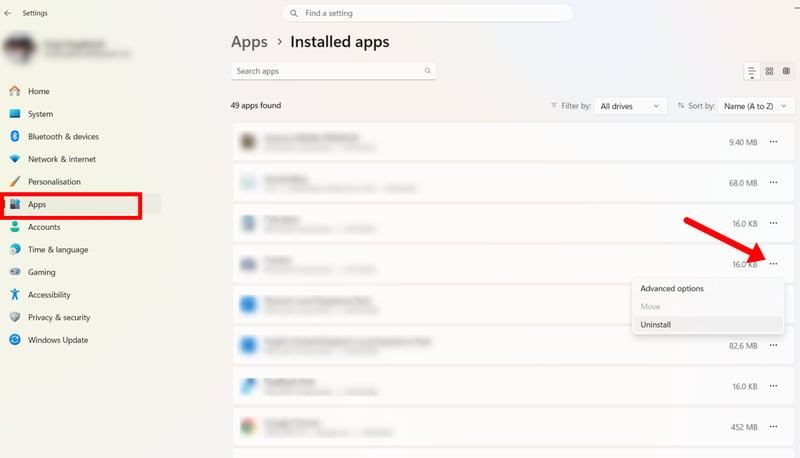
Select the suspicious apps and uninstall them.
Remove Browser Extensions and Reset Settings
Adware frequently hides in browser extensions too. Open your browser’s extension manager and remove any add-ons you don’t recognize or didn’t install yourself.
In Chrome and Microsoft Edge, click the three-dot icon in the toolbar and select “Extensions” → “Manage extensions.” In Firefox, you’ll find this under “Extensions.”

Select the unwanted extension and remove it from your browser.
Next, reset your homepage and default search engine if they’ve been changed. Click the menu icon, then go to “Settings.”
If resetting your browser doesn’t solve the problem, consider reinstalling it as a last resort. Your personal data, like bookmarks and favorites, usually won’t be lost if they’re synced to your browser account.
Run an Additional Malware Scan
If the adware is still there, or if you want to be extra thorough, run a malware scan. Windows includes Microsoft Defender Antivirus (Virus & threat protection).
In Windows 11, go to “Settings” → “Privacy & security” → “Windows security.”
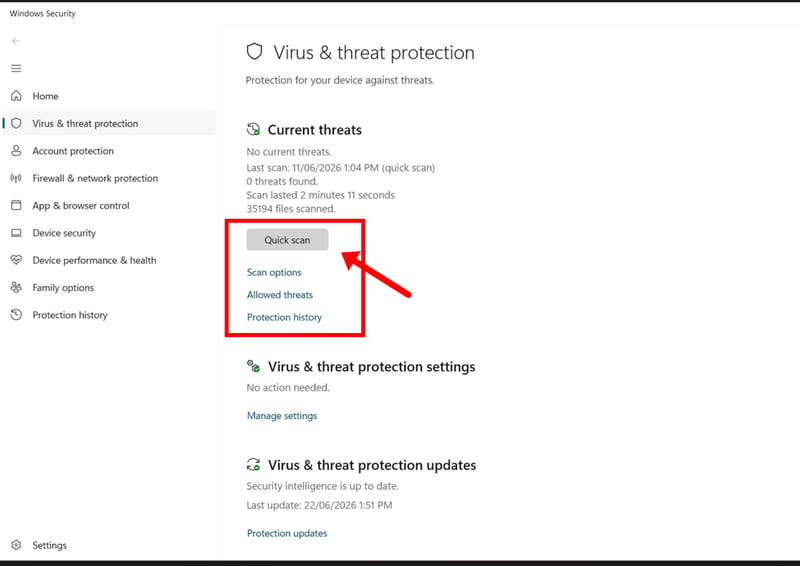
Windows’ built-in virus and threat protection scans for malware.
It’s a good idea to run a second scan with a dedicated anti-malware tool. This helps most when Windows’ built-in scanner finds nothing, but you’re still seeing signs of adware.
We’ve tested several programs and put together a guide on their pros and cons.

For Stubborn Cases: Run a Malware Scan in Safe Mode
If the adware is blocking your PC or the virus scan, try safe mode. Many types of malware, including adware, are less likely to run in safe mode. The exact steps vary depending on your phone manufacturer.
Here’s how to do it:
Step 1: Click the Start button → Power. Hold down the Shift key and click Restart.
Alternatively, go to Start → Settings → System → Recovery. Under Advanced startup, click Restart now.

Use Windows 11’s system settings to perform an advanced startup and boot into safe mode.
Step 2: After your PC restarts, you’ll see a screen titled Choose an option. Select Troubleshoot → Advanced options → Startup Settings, then click Restart.

In the options menu, select “Troubleshoot,” then “Advanced Options,” and finally “Startup Settings.”
Step 3: On the next screen, press the 4 key to start Windows in safe mode.

Boot Windows in safe mode to bypass restrictions and manage your files.
Once you’re in safe mode, repeat steps two through four: uninstall unwanted programs, remove browser extensions, reset your settings, and run a malware scan.
If Nothing Else Works: Reset Windows
If your system still acts up and keeps showing ads after you've tried everything else, reset Windows or do a clean reinstall. Depending on the option you choose, Windows removes installed programs or completely wipes the device.
To achieve this, click Start → Settings → System → Recovery and select Reset this PC. Make sure to back up your data to an external drive first!

You can select whether to keep your personal files or erase everything and format the drives.
How to Remove Adware From Your Smartphone
Smartphones are also a common target for adware, especially Android devices. iPhones are less affected thanks to Apple’s stricter App Store controls.
Generally, adware sneaks onto your device through unofficial app stores, apps from third-party sources, or fake websites. Once installed, it abuses permissions to show ads in the background or secretly change system settings.
Here’s how to remove adware from your smartphone:
Step 1: Start your device in safe mode
Safe mode only loads preinstalled system apps. All other apps remain disabled, making it easier to spot and remove suspicious ones.
To enter safe mode, press and hold the power button, then long-press Power off.
Alternatively, turn off your device. When you turn it back on, hold the volume-down button as soon as you see the “Powered by Android” logo.

Boot your smartphone in safe mode.
Step 2: Check permissions for suspicious apps
In safe mode, open your device’s app settings. Go to Settings, then “Apps” or “Apps & notifications.”
Tap an app to see its permissions. Check whether they make sense for what the app actually does. Does a flashlight app really need your location, contacts, or camera? If not, turn those permissions off.

In the app info, you can check the permissions for each app on your smartphone.
Step 3: Uninstall recently installed apps
If the adware showed up recently, it’s likely tied to an app you just downloaded. Open your app management, check the list of recently installed apps, and uninstall anything that looks suspicious.
Adware often hides in apps that claim to be “helper,” “cleaner,” “optimizer,” or “PC booster.” But even simple free tools like flashlight apps or games can be the culprits.
Step 4: Check browser data
If adware shows up mainly while you’re browsing on your phone, in the form of intrusive ads or push notifications, the problem is likely in your browser.
Open your browser’s settings and look for a section like “Privacy and security” or “Clear browsing data.” Delete your cache, cookies, and browsing history.

Clear your browser data on your phone to remove adware.
Check site notifications (usually under “Site settings” or “Permissions”) and see which sites have permission to send push notifications.
Also check whether your homepage or default search engine has changed without your permission. Reset them if needed.
Step 5: Run a malware scan
If the previous steps don’t help, run a thorough scan with a security app like Malwarebytes, Avast, or Bitdefender from the Google Play Store.

These tools can detect hidden adware components that disguise themselves as system services—the kind of threats that never show up in your regular app list.

Malwarebytes for Android offers a thorough malware scanner.
Run a full scan and follow the on-screen instructions.
If none of the above steps work, a factory reset may be your only option. Just make sure to back up your important files to a cloud service or your PC first.
To reset, go to Settings → System → Reset. After the reset, reinstall your apps one by one instead of restoring a full backup.
How Can I Protect Myself from Adware?
A few simple steps can drastically reduce your risk of getting adware. Here’s what to do:
Download apps and software only from trusted sources
Stick to official websites or well-known app stores. Avoid third-party download sites, where adware often hides in free software.Keep your system and apps up to date
Install security updates for your operating system and apps regularly. These patches close vulnerabilities that adware could exploit.Use a firewall, malware scanner, and ad blocker
The built-in Windows Firewall already provides strong protection for most users. A real-time anti-malware tool can also catch threats before they cause damage.Add an ad blocker like Adblock Plus or uBlock Origin to your browser to block intrusive ads and malicious scripts.
Pay close attention during app installations
Adware typically sneaks in alongside other software. Choose the custom installation option instead of the default or express setup, and uncheck any unwanted extras.Watch out for phishing emails
Scammers use phishing to send infected attachments or lure you to fake websites. They pose as official organizations, delivery services, or people you know. Always double-check the sender, and only open attachments or click links if you trust the message.Don’t click on pop-up ads or notifications
Think twice before you allow websites or apps to send push notifications. Avoid clicking on pop-ups like “Your phone is infected” or “You’ve won a prize,” which often lead straight to adware.
Final Thoughts: Adware Is Annoying but Easy to Remove
If you know the warning signs and stay alert when installing software, adware won’t give you much trouble. Only download programs and apps from trusted sources, keep your system updated, and avoid clicking suspicious pop-ups or links.
If adware does find its way onto your device, it’s usually easy to remove. In most cases, you just uninstall suspicious programs and browser extensions, then run a malware scan. A factory reset or a Windows reinstall is only necessary for stubborn infections.
FAQ
No. Adware mainly shows unwanted ads and collects browsing data, while a virus actively spreads and causes damage. Still, adware is a nuisance and not completely harmless.
Microsoft Defender Antivirus is sufficient for most common adware infections. But for stubborn cases, an additional scan with a specialized anti-malware tool can help.
Adware itself isn't designed to steal passwords or banking details, but some variants collect browsing data or inject malicious web content—and it can redirect you to phishing sites where scammers try to capture your login information.
Most often, it comes bundled with free software, through shady browser extensions, or fake updates. If you only download software from official sources and pay attention during installation, you’re much less likely to encounter adware.
Rarely. A full reinstall is only necessary if the adware can’t be removed by normal means or if there are signs of other malware.


